Building Computer use for Cloud Agents

Imagine you're on your phone and a teammate messages you: the onboarding flow is broken after the latest deploy, the signup form isn't validating inputs, the progress bar is stuck, and the confirmation screen doesn't render. You fire off a message to your agent from Slack: "Fix the onboarding flow. Here's the Linear issue." A few minutes later, you get a notification with screenshots of each screen working correctly. The agent traced the bugs across multiple components, fixed them, built the app, opened it in a browser, and clicked through the entire flow to verify it end-to-end. You never opened a laptop.
Coding agents have gotten increasingly good at validating their own work on text-based tasks. They can write code, run tests, check linting errors, and iterate in a loop until things pass. But anything visual (frontend changes, UI bugs, design tweaks) still requires a human to open the app, look at it, and decide if it's right. The agent can write the code, but it can't see what it built.
Computer use changes that. It gives the agent the ability to see the screen, click, type, scroll, and visually verify its own work, closing the loop on visual tasks the same way tests close the loop on logic.
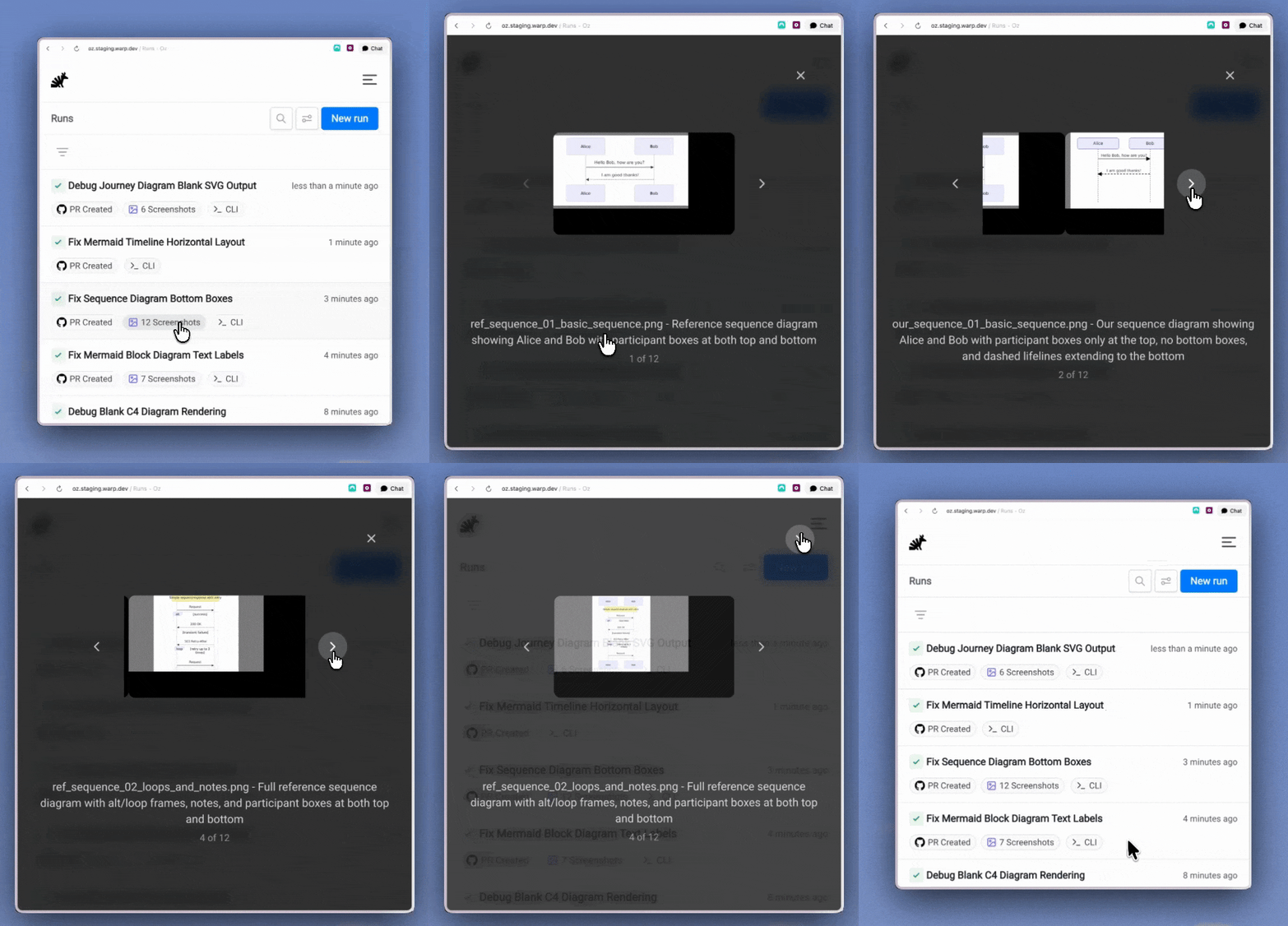
Watch the full demo of how computer use combines with Oz + the Slack integration
How it works
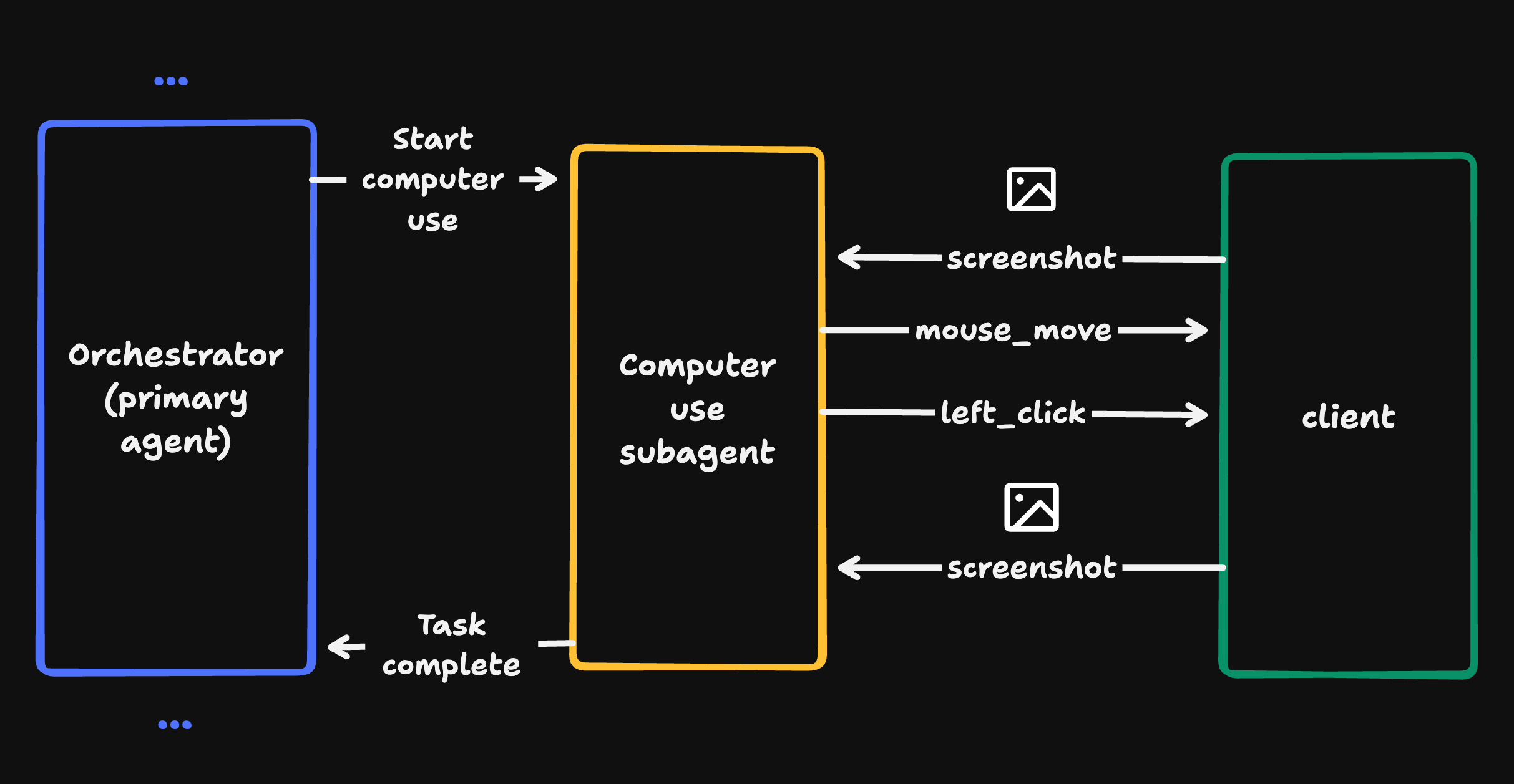
At a high level, computer use is powered by a two-level agent architecture. When Warp's primary agent decides it needs to interact with a GUI — say, to test a UI change it just made — it delegates to a specialized computer use subagent. This subagent runs with its own context window, which is important. Screenshots and pixel-level GUI state are noisy, and keeping them out of the primary agent's context means it stays focused on the broader task.
The computer use subagent operates in a tight loop:
- It receives a screenshot of the current screen.
- The LLM looks at the screenshot and decides what to do — click a button, type into a field, scroll down.
- The action is executed and a new screenshot is captured.
- The LLM sees the result, and decides the next step.
- Repeat until the task is done.
When the subagent finishes, it reports a summary of what it did and observed back to the primary agent, which continues its work with that context.
Designing a model-agnostic action protocol
One of the more interesting technical challenges was designing the API between our server and client for computer use actions. The core tension: different LLM providers define their own computer use tool schemas, and they don't agree on the vocabulary.
Anthropic, for example, exposes high-level actions like left_click, double_click, and left_click_drag. Other providers may carve up the action space differently: different names, different granularity, different assumptions about what a single action should do.
We didn't want our client to care about any of this. So we defined a set of generic atomic actions at the protocol layer:
- MouseDown / MouseUp
- MouseMove
- MouseWheel
- KeyDown / KeyUp
- TypeText
- Wait
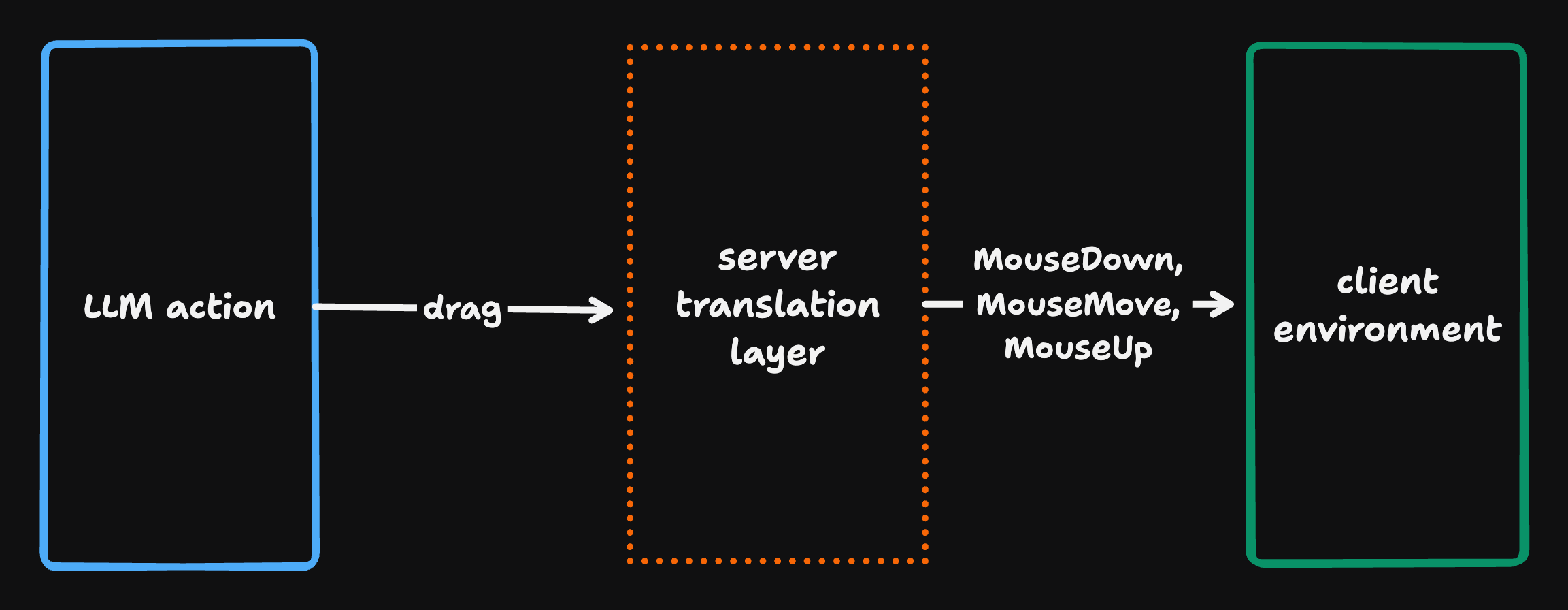
These are the smallest meaningful units of input. Any higher-level action from any provider can be decomposed into a sequence of these primitives. A left_click is just MouseDown followed by MouseUp. A double_click is two of those in succession. A "drag" is MouseDown, MouseMove to the target, MouseUp.
The translation happens entirely on the server. When the LLM emits a provider-specific action, a server-side translator decomposes it into a sequence of atomic actions and sends those to the client over the wire. The client just executes primitives. It has no idea which model provider generated them.
This design has a practical payoff. Adding support for a new model provider's computer use capabilities only requires writing a new server-side translator. Zero client changes.
Making it work across platforms
The atomic action protocol gives us a clean abstraction, but someone has to actually move the mouse and press the keys. On the client side, that means dealing with three very different platform stacks: macOS, Linux/X11, and Linux/Wayland. Each has its own APIs for input injection, its own coordinate systems, its own security models, and its own approach to screenshots. Making them all behave identically behind a single interface took some careful abstraction work.
Keyboard input and the layout problem
Keyboard input required some digging into how keycodes actually work across platforms. There's a gap between how models think about keys and how operating systems handle them.
When a model says "press Cmd+A", "Cmd" is a modifier — it maps to a specific key on the keyboard regardless of layout. But "A" is a character — the key that produces it lives in a different physical position on QWERTY, AZERTY, and Dvorak keyboards.
To simulate a key press, the OS needs a keycode, an OS-level representation of a physical key position. So when the agent wants to type "a", we need to figure out which physical key produces "a" on the current keyboard layout. We do this by querying the keyboard layout at runtime and building a mapping from characters to keycodes. On a QWERTY layout, "a" maps to one keycode; on AZERTY, it maps to a different one.
Getting this wrong would mean the agent types gibberish on non-QWERTY keyboards, a problem that would be invisible during development on a standard US layout but would break the feature for a large portion of users.
Cloud sandboxes make this real
Everything we've described so far (the action protocol, the cross-platform execution, the screenshot loop) works on any machine. But there's a fundamental problem with running computer use on someone's personal computer: you probably don't want an AI agent to have real mouse and keyboard control of your machine.
It's not just about accidental clicks. Your computer has sensitive data, like credentials, personal files, and active browser sessions, that you wouldn't want an AI agent anywhere near. And even in the best case, sharing a mouse and keyboard with an autonomous agent while you're trying to work is impractical.
This is where Warp's Oz platform changes the equation. Oz runs agents in isolated cloud sandbox environments. Each sandbox has its own filesystem and network isolation, and critically, its own virtual display. When computer use is enabled for an environment, we automatically set up Xvfb (X virtual framebuffer), a display server that performs all graphical operations in memory without needing a physical monitor. This gives the agent a real X11 display to interact with, complete with mouse and keyboard input, inside a headless container. The agent can open browsers, interact with GUIs, and take screenshots, all without any physical hardware.
This unlocks the real power of the feature. Because the agent is running in the cloud, you can trigger it from anywhere: from Warp's terminal, from Slack, from a webapp, or from your phone. You can monitor its progress in real time from any device. And when it's done, you can view the screenshot artifacts it captured, visual proof that the work was done correctly, without being anywhere near a development machine.
The result is an agent that can handle the complete development lifecycle. It writes, builds, runs, and visually verifies the code, then iterates on what it sees. All of this without a human needing to be in the loop.
For more on how we architected our cloud sandbox infrastructure, see our post on building secure cloud sandboxes with Namespace.
What's next
Computer use is still early, and there's room to make it faster and more reliable. We're actively improving the feature on several fronts:
- Optimizing the action loop: smarter prompting, better context management, and tighter integration between the subagent and the primary agent to reduce unnecessary steps and improve accuracy.
- Expanding provider support. Our provider-agnostic architecture makes adding new model providers easier, and we're actively integrating new ones as they become available.
Making computer use work in practice requires more than giving a model access to screenshots. That's why we built it on top of Oz, Warp's cloud agent platform — it provides the isolation, virtual display infrastructure, and remote accessibility to make computer use safe and practical.
If you want to try it yourself, check out our docs on computer use and the Oz agent platform to get started.
Features like computer use are the work of our talented App Team engineers, including David Stern and myself, Daniel Peng. If you want to join us in solving ambitious and complex AI problems like this, we'd love to hear from you. Reach out to us at recruiting@warp.dev.
Start your software factory
Book a demo and we’ll walk you through the workflows that map to your stack.
Related articles
Aug 27, 2026Engineering
12 min
Closing the loop with self-improving cloud software factories
12 min
Aug 26, 2026Engineering
8 min
The missing feedback loop for software factories
8 min
Jul 23, 2026Engineering
5 min
The Cloud Software Factory Build Guide
5 min
Jul 22, 2026Engineering
6 min
The problem with hypergrowth AI startups
6 min
Jul 15, 2026Engineering
7 min
How to build a cloud software factory - self-improving code review
7 min
